
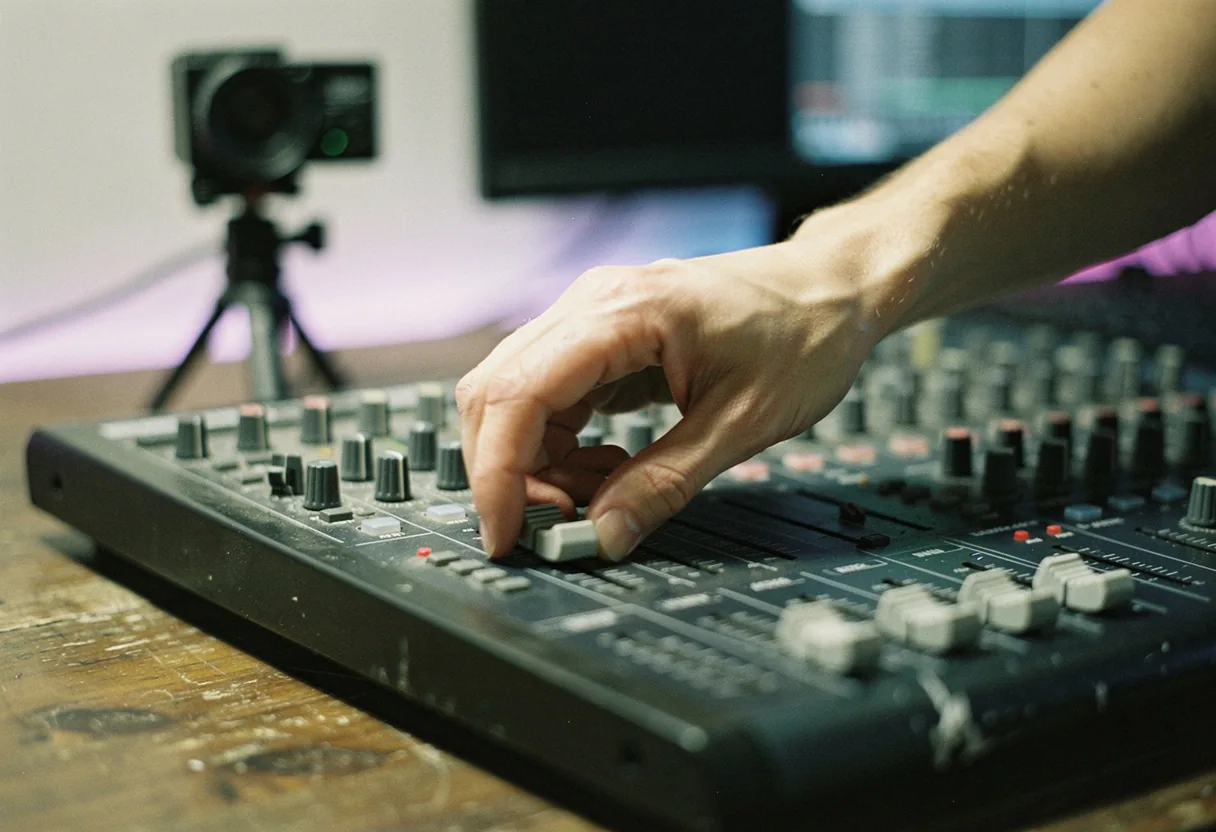
discord soundboard: Michael Reed · on 17 July 2026 · 6 min read · Last reviewed 17 July 2026
A Discord soundboard is a digital soundboard and audio library that allows live streamers to play sound effects, clips, and music directly in their Discord server or stream.
In plain terms: Think of it like a digital jukebox for your stream, you load it up with your favorite sounds, and with a single click, you can play them for your audience, like dropping a classic movie quote or a funny meme sound.
Key facts
- Discord soundboards are popular among streamers for adding interactive and entertaining elements to their broadcasts.
- They can be set up using third-party software or Discord bots.
- Sound effects can be triggered manually or automatically based on in-stream events.
- According to Streamlabs, soundboards can significantly boost audience engagement.
How to Set Up a Discord Soundboard
To set up a Discord soundboard for live streams, you’ll need to choose a soundboard platform, install it, and integrate it with your streaming software.
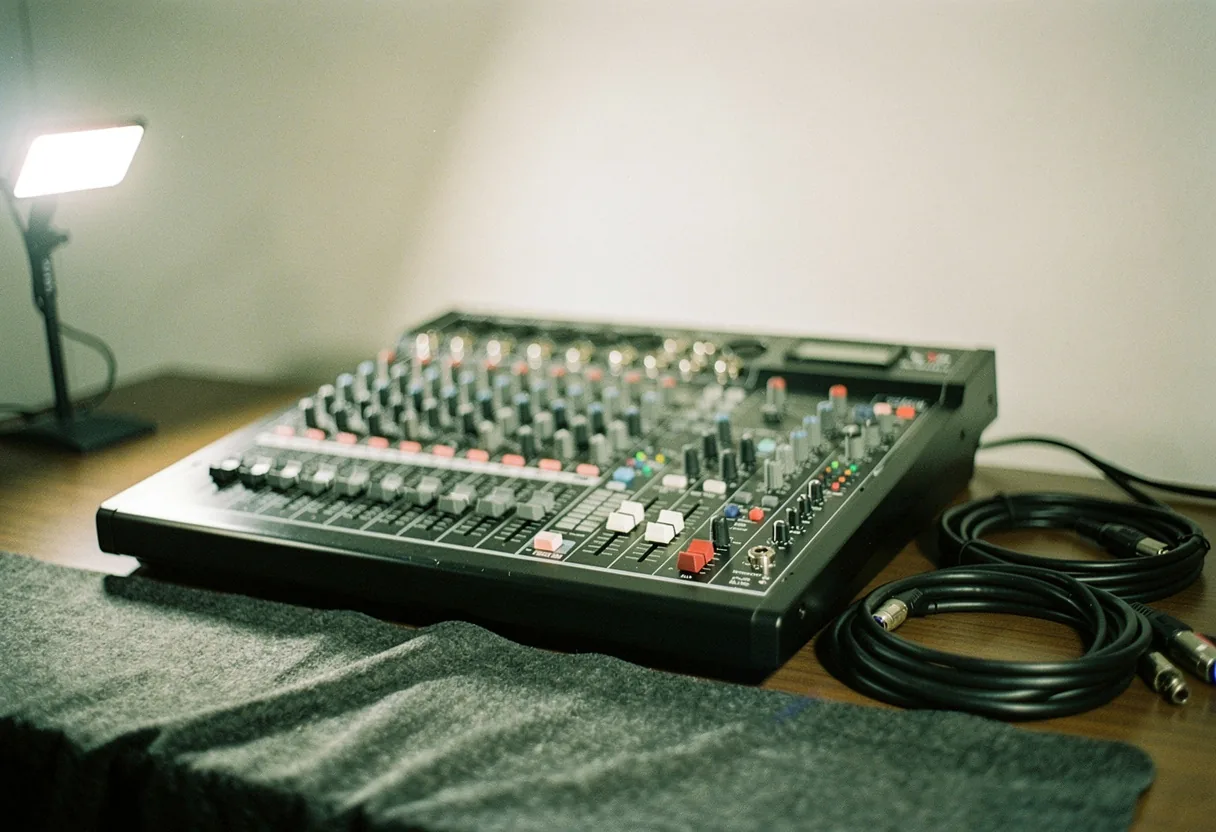
What you need
- A Discord server where you have administrative permissions
- A soundboard software or bot (such as VoiceMod, Streamlabs Desktop, or Discord Soundboard Bot)
- Audio files in MP3, WAV, or other supported formats
- A streaming software like OBS Studio or Streamlabs OBS
- Basic knowledge of Discord server management and streaming software setup
Step-by-step procedure
- Choose a soundboard software or bot that fits your needs. Popular options include Streamlabs Desktop, VoiceMod, and Discord Soundboard Bot.
- Download and install the software or add the bot to your Discord server. For bots, you’ll need to invite them to your server through the Discord Developer Portal.
- Collect or create your sound effects. You can find free sound effects on websites like Freesound or record your own using a microphone or audio software.
- Organize your sounds into categories, such as laughter, movie quotes, or gaming sounds, for easy access during streams.
- Set up hotkeys or buttons in your soundboard software to trigger sounds quickly. In Streamlabs Desktop, you can assign hotkeys or use the virtual soundboard interface.
- Integrate your soundboard with your streaming software. In OBS Studio, you can add the soundboard as an audio source.
- Test your soundboard during a practice stream to ensure all sounds play correctly and are audible to your audience.
- Customize your soundboard further by adjusting audio levels, adding sound effects to specific channels, or setting up automated triggers based on in-stream events.
- Monitor and update your soundboard regularly to keep it fresh and engaging for your audience.
Common mistakes to avoid
Avoid these pitfalls when setting up your Discord soundboard for live streams:
- Overloading your soundboard with too many sounds, which can make it difficult to find the right one during a stream.
- Using low-quality audio files, which can result in poor sound quality during your stream.
- Ignoring audio levels, which can cause sounds to be too loud or too quiet compared to your voice or game audio.
- Not testing your soundboard before going live, which can lead to technical issues during your stream.
How to Choose a Discord Soundboard
Choose a Discord soundboard based on your specific needs, such as the number of sounds you want to manage, the ease of use, and integration with your streaming software.
| Soundboard Option | Key Features | Best For |
|---|---|---|
| Streamlabs Desktop | Virtual soundboard, hotkey support, integration with OBS | Streamers who use Streamlabs or OBS |
| VoiceMod | Real-time voice modulation, soundboard features, customizable effects | Streamers who want advanced voice effects |
| Discord Soundboard Bot | Bot-based soundboard, easy setup, command-based triggers | Streamers who prefer bot-based solutions |
Where to Find Sounds for Your Discord Soundboard
Find sounds for your Discord soundboard on websites like Freesound, Zapsplat, and SoundBible, which offer a wide range of free and royalty-free sound effects.
| Website | Key Features | Best For |
|---|---|---|
| Freesound | Large library of user-uploaded sounds, free to use with attribution | Streamers looking for a variety of sounds |
| Zapsplat | High-quality sound effects, free and premium options | Streamers who need professional-grade sounds |
| SoundBible | Free sound effects, easy to search and download | Streamers who want quick and easy access to sounds |
How to Use a Discord Soundboard During Live Streams
Use a Discord soundboard during live streams by assigning hotkeys or using the virtual soundboard interface to trigger sounds quickly and effortlessly.
- Assign hotkeys to your most frequently used sounds for quick access.
- Use the virtual soundboard interface in your streaming software to trigger sounds with a single click.
- Set up automated triggers based on in-stream events, such as playing a sound when a specific game event occurs.
- Monitor your audio levels to ensure sounds are balanced with your voice and game audio.
What Are the 4 Types of Sounds?
The 4 types of sounds are vocalic, consonantal, suprasegmental, and paralinguistic sounds. Vocalic sounds include vowels and diphthongs, while consonantal sounds include consonants. Suprasegmental sounds involve aspects like stress and intonation, and paralinguistic sounds include laughter, sighs, and other non-verbal utterances.
Where Do I Find Sounds on My iPhone?
Find sounds on your iPhone in the Sounds & Haptics settings or by using third-party apps like Zedge or MyTones.
Where Can I Find Free Sounds?
Find free sounds on websites like Freesound, Zapsplat, and SoundBible, which offer a wide range of free and royalty-free sound effects.
What Are the 44 Sounds of English?
The 44 sounds of English, known as phonemes, include 20 vowel sounds and 24 consonant sounds. These sounds are the building blocks of spoken English and can be found in resources like the International Phonetic Alphabet (IPA) chart.
How to Store and Access Sounds on Your Device
Store and access sounds on your device by organizing them in folders on your computer or using cloud storage services like Google Drive or Dropbox.
- Create a dedicated folder on your computer for sound effects.
- Upload sounds to cloud storage services for easy access from any device.
- Organize sounds into subfolders based on categories, such as laughter, movie quotes, or gaming sounds.
- Backup your sounds regularly to prevent data loss.
How to Use Limited Data to Select Advertising
Use limited data to select advertising by targeting specific demographics or interests, rather than broad categories. This approach ensures that your advertising efforts are more efficient and cost-effective.
How to Create Profiles for Personalized Advertising
Create profiles for personalized advertising by collecting data on user behavior, preferences, and demographics. This information can be used to tailor advertising content to individual users.
How to Use Profiles to Select Personalized Content
Profiles select personalized content by analyzing user data and delivering content that aligns with their interests and preferences. This approach enhances user engagement and satisfaction.
How to Measure Advertising Performance
Measure advertising performance by tracking metrics such as click-through rates, conversion rates, and return on investment. These metrics provide insights into the effectiveness of your advertising campaigns.
In plain terms, setting up a Discord soundboard for live streams is like giving your audience a front-row seat to your favorite sounds. With the right tools and a bit of practice, you can create an engaging and interactive experience that keeps your viewers coming back for more.
What software do I need to create a Discord soundboard?
You’ll need a soundboard software like VoiceMeeter, OBS Studio, or specialized soundboard apps like VSTHost or Soundboard Pro. VoiceMeeter acts as a virtual audio mixer, while OBS can route audio from your soundboard into Discord. VSTHost or Soundboard Pro can load individual sound clips for quick access during streams.
How do I connect my soundboard to Discord?
First, route your soundboard’s audio output to VoiceMeeter or another virtual audio device. Then, in Discord, go to User Settings > Voice & Video, and select the virtual audio device as your input. This ensures your soundboard plays through Discord without affecting other audio inputs.
Can I use pre-recorded sound effects in my soundboard?
Absolutely. Pre-recorded sound effects work perfectly. Save them as WAV or MP3 files, then import them into your soundboard software. Organize them into folders or playlists for quick access. Many streamers use popular sound effects from shows, games, or original recordings to add personality to their streams.
How do I avoid audio lag when using a soundboard?
Minimize lag by using high-quality, low-latency audio software and ensuring your computer meets the system requirements. Close unnecessary programs to free up resources. In VoiceMeeter, adjust buffer settings to reduce latency. Testing different settings before going live helps find the optimal balance between quality and responsiveness.